
Mesh Generator for Adobe Photoshop
Turn Your Photos Into Editable Smart Object Mockups
Creating realistic mockups shouldn’t require hours of manually adjusting perspective and warping layers.
Mesh Generator is a Photoshop plugin that analyzes the shape of a surface in your photo and creates a transformed, editable Smart Object that follows its geometry.
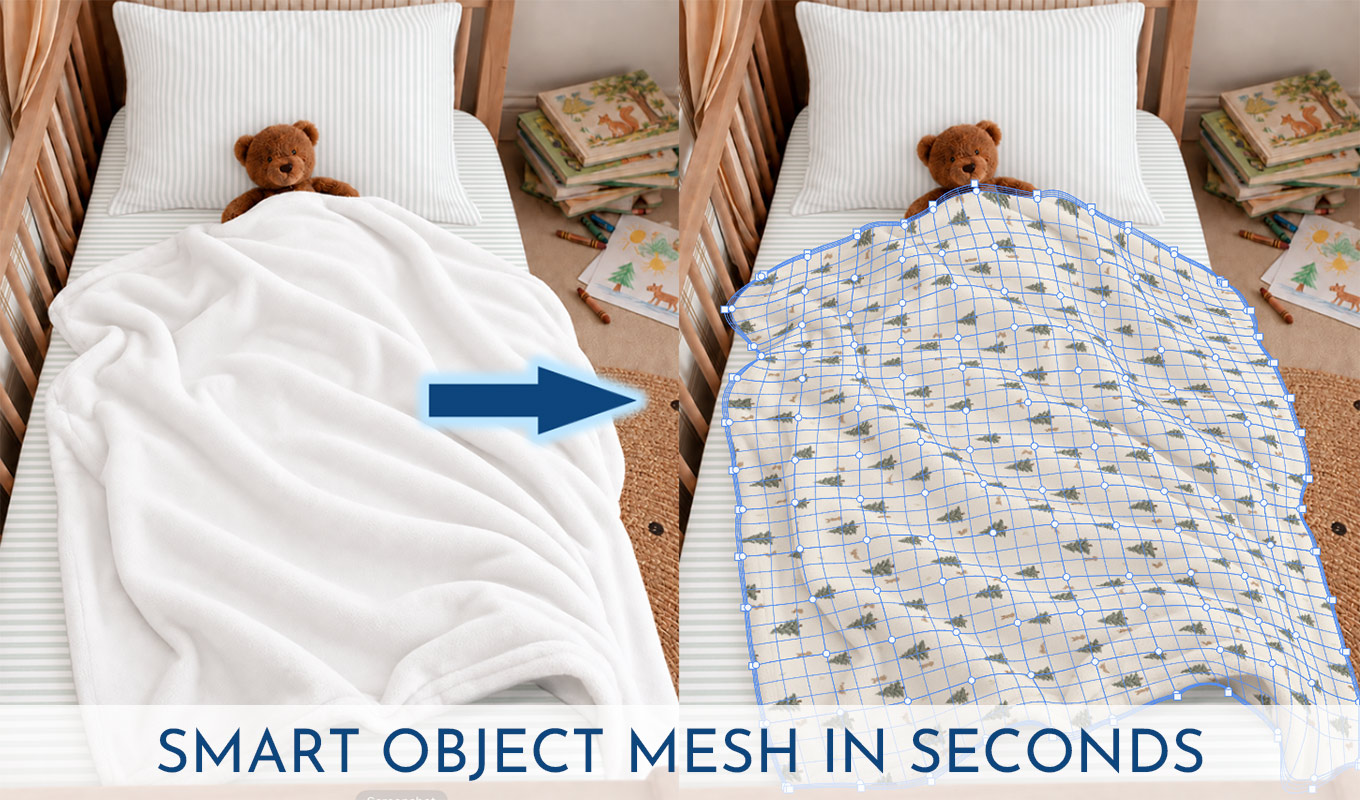
Made for surface pattern designers, professional mockup creators, graphic designers, and online sellers showcasing artwork on fabric, clothing, home decor, and other products.
Start with 50 free generations. No credit card required.
 Use in Photopea
From Photo to Smart Object in a Few Clicks
Step 1. Select Your Surface
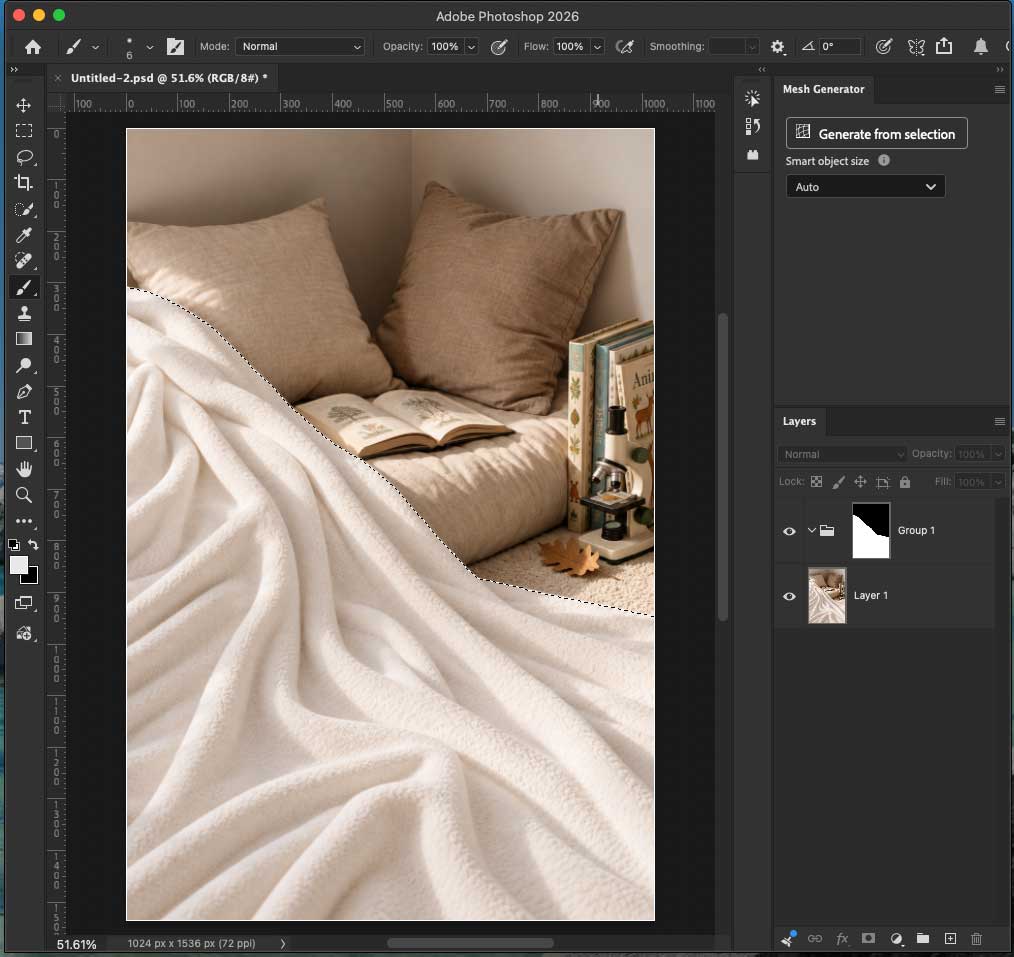
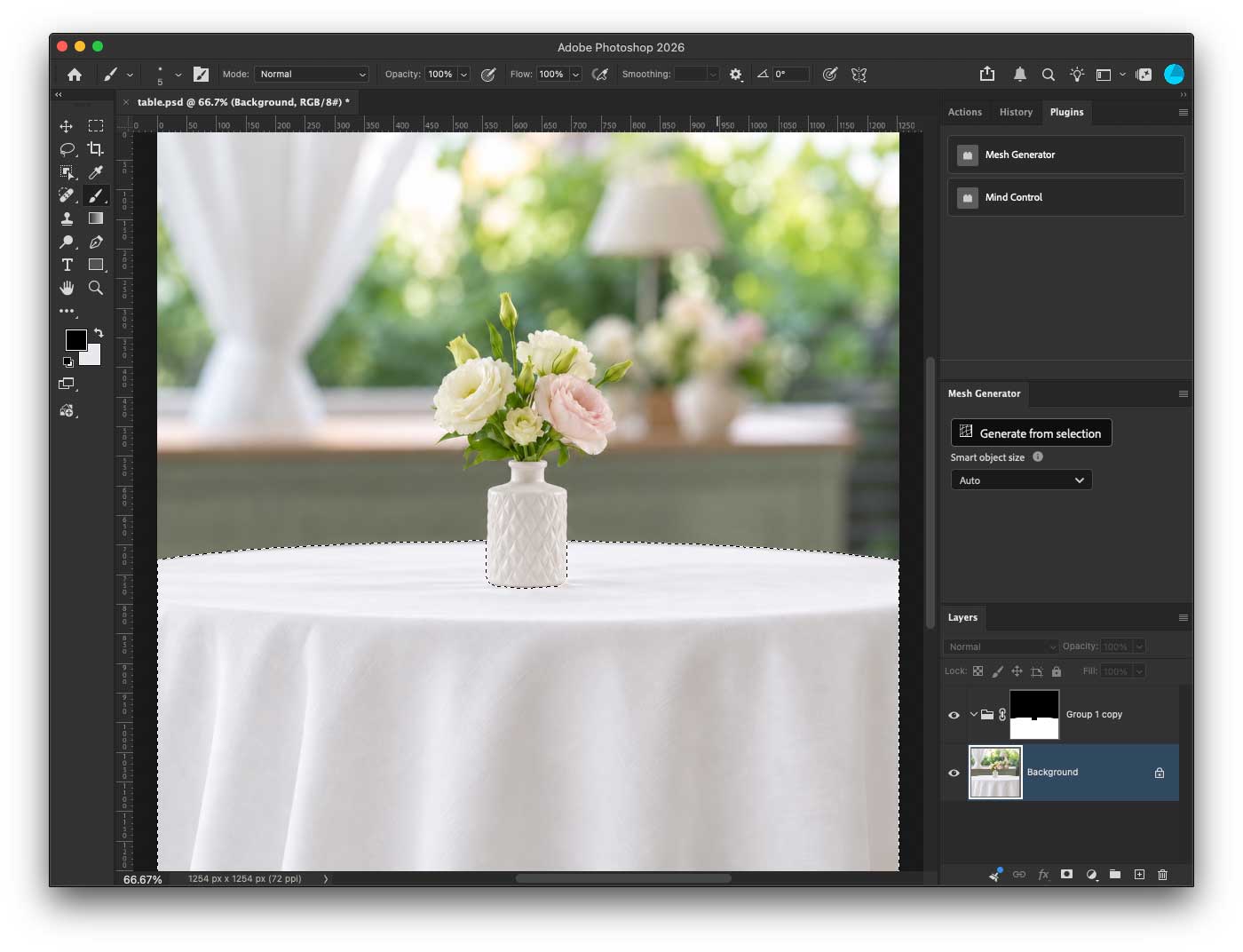
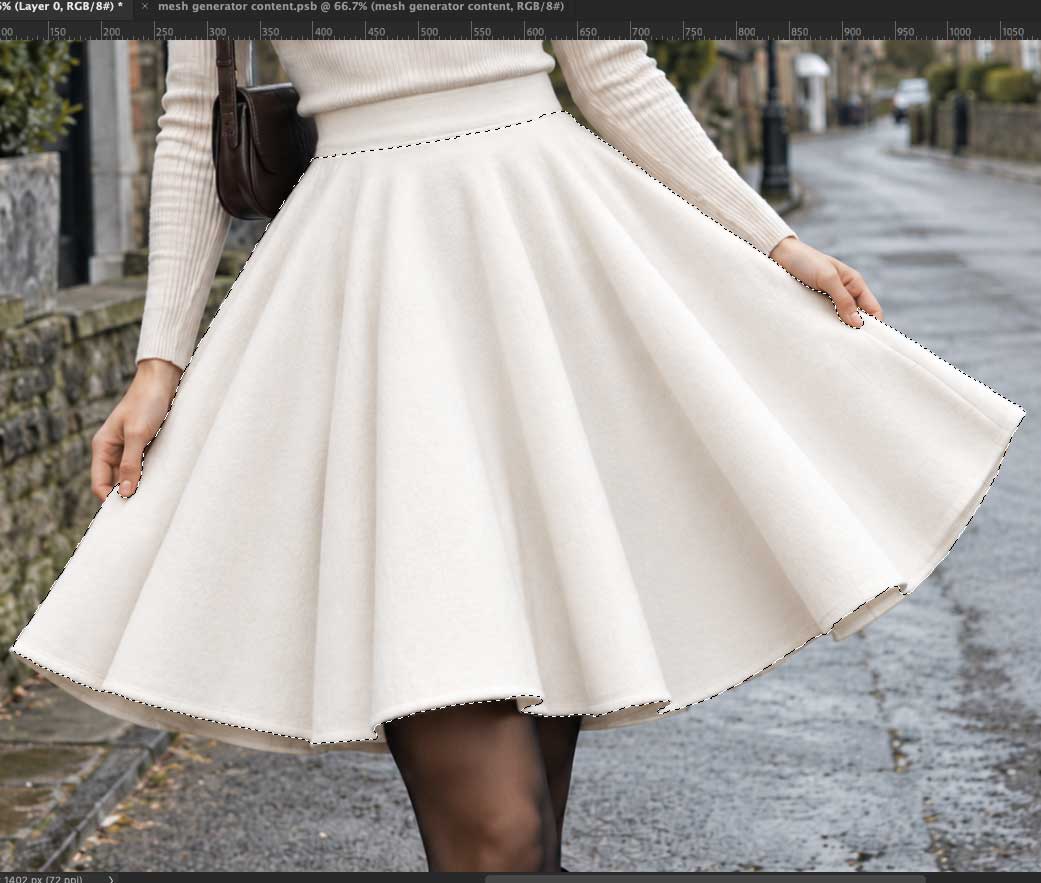
Open your image in Photoshop and select the area where you want your design to appear.
Use a supported Photoshop selection method, such as the Lasso or Quick Selection tool, or a selection created from a layer mask.
The selection tells Mesh Generator which part of the image to analyze and defines the area where the generated Smart Object will be visible.
Step 2. Click the Magic Button
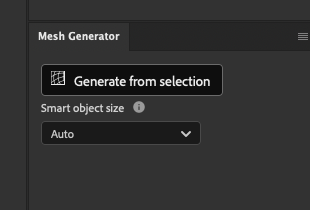
Open Mesh Generator and click Generate.
The plugin analyzes the image using computer vision and mathematical fitting algorithms to estimate the geometry of the selected surface.
No manual mesh construction. No painstakingly adjusting dozens of control points.
Step 3. Add Your Design
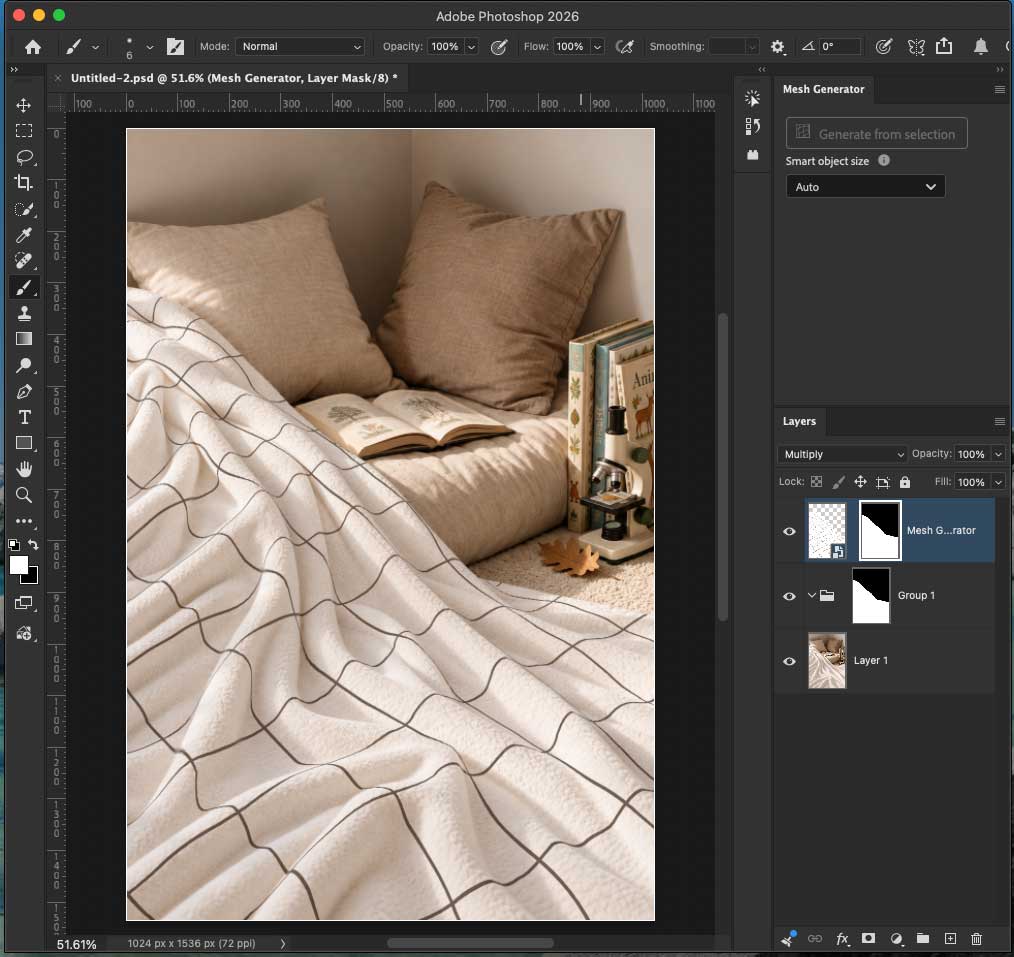
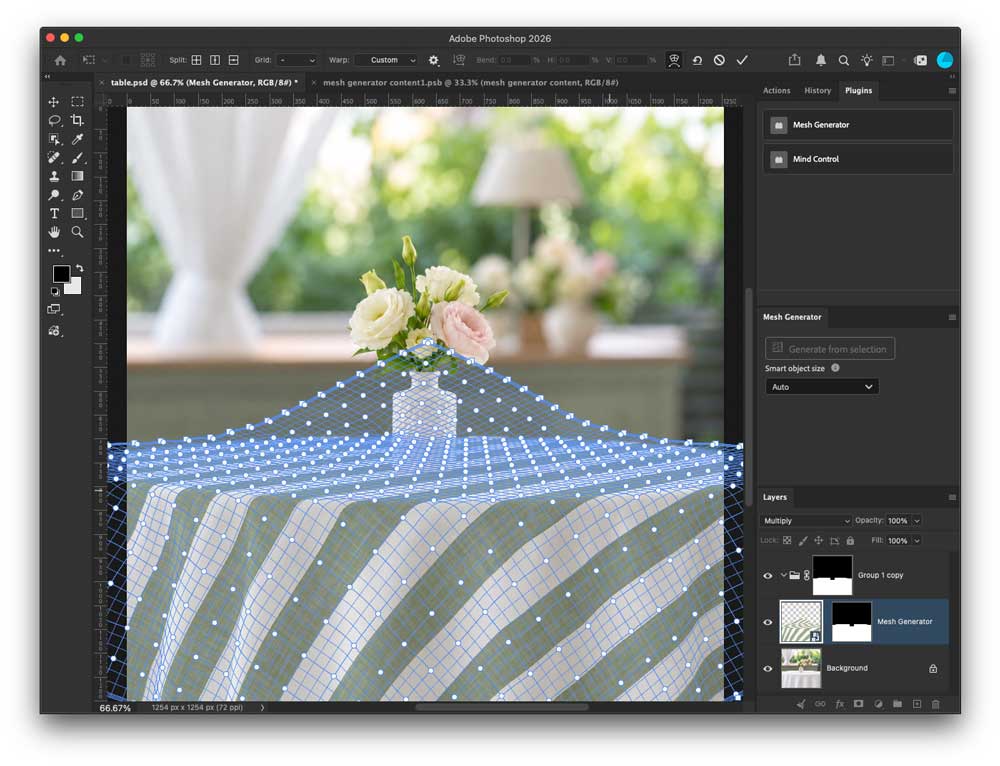
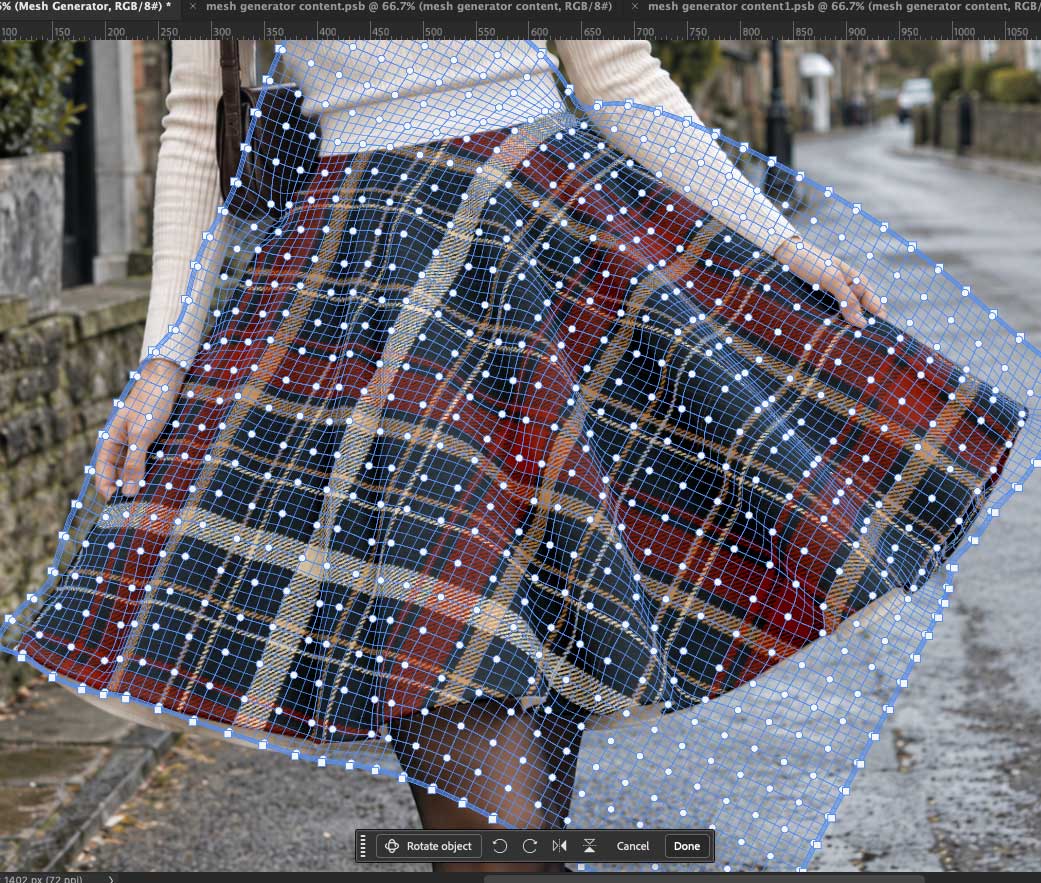
After a few seconds, you’ll have a new Smart Object layer with a mesh transformation applied.
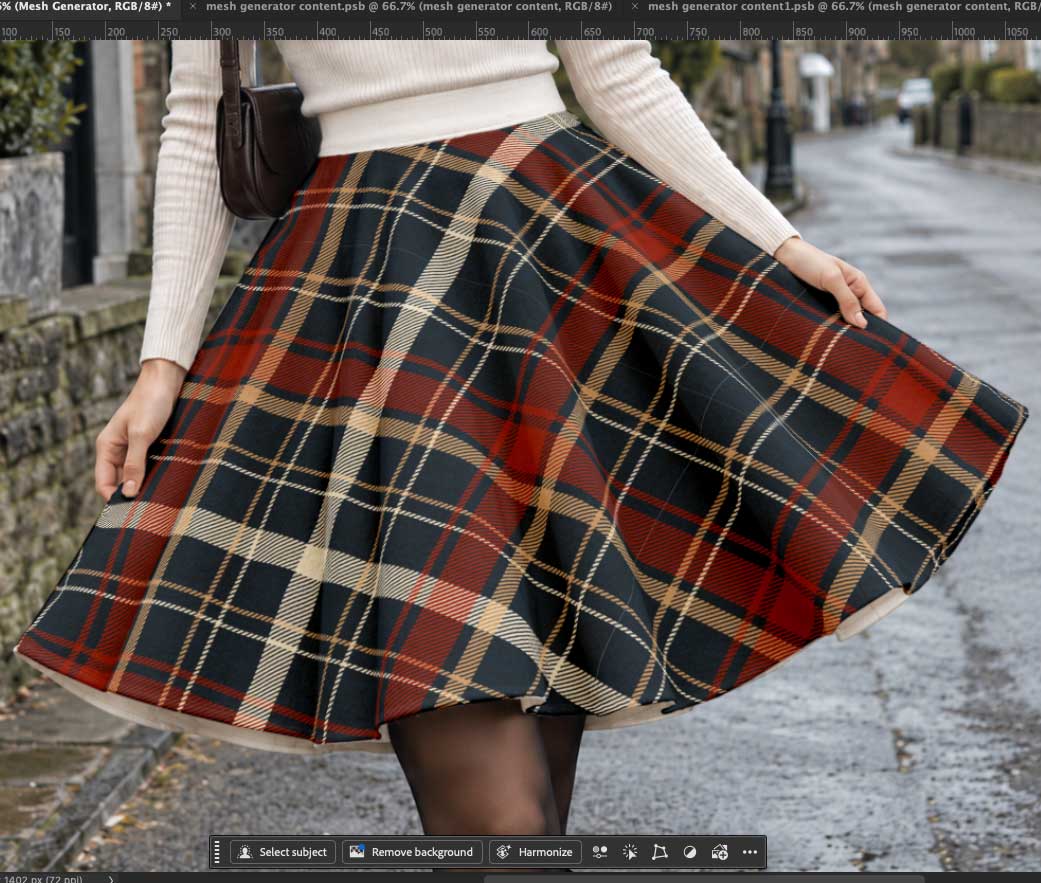
Open the embedded Smart Object, insert your pattern, texture, or image, and save. Your artwork follows the estimated geometry of the original surface, including curves, perspective, and folds.
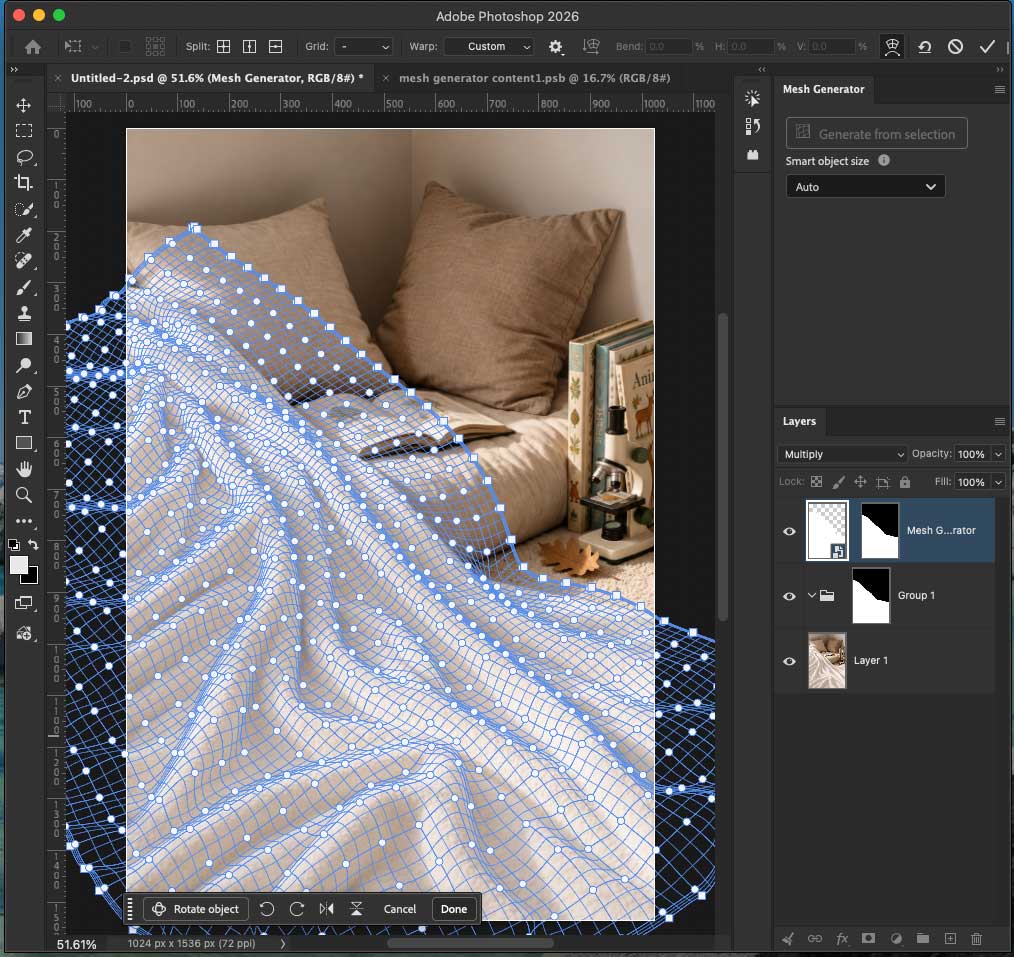
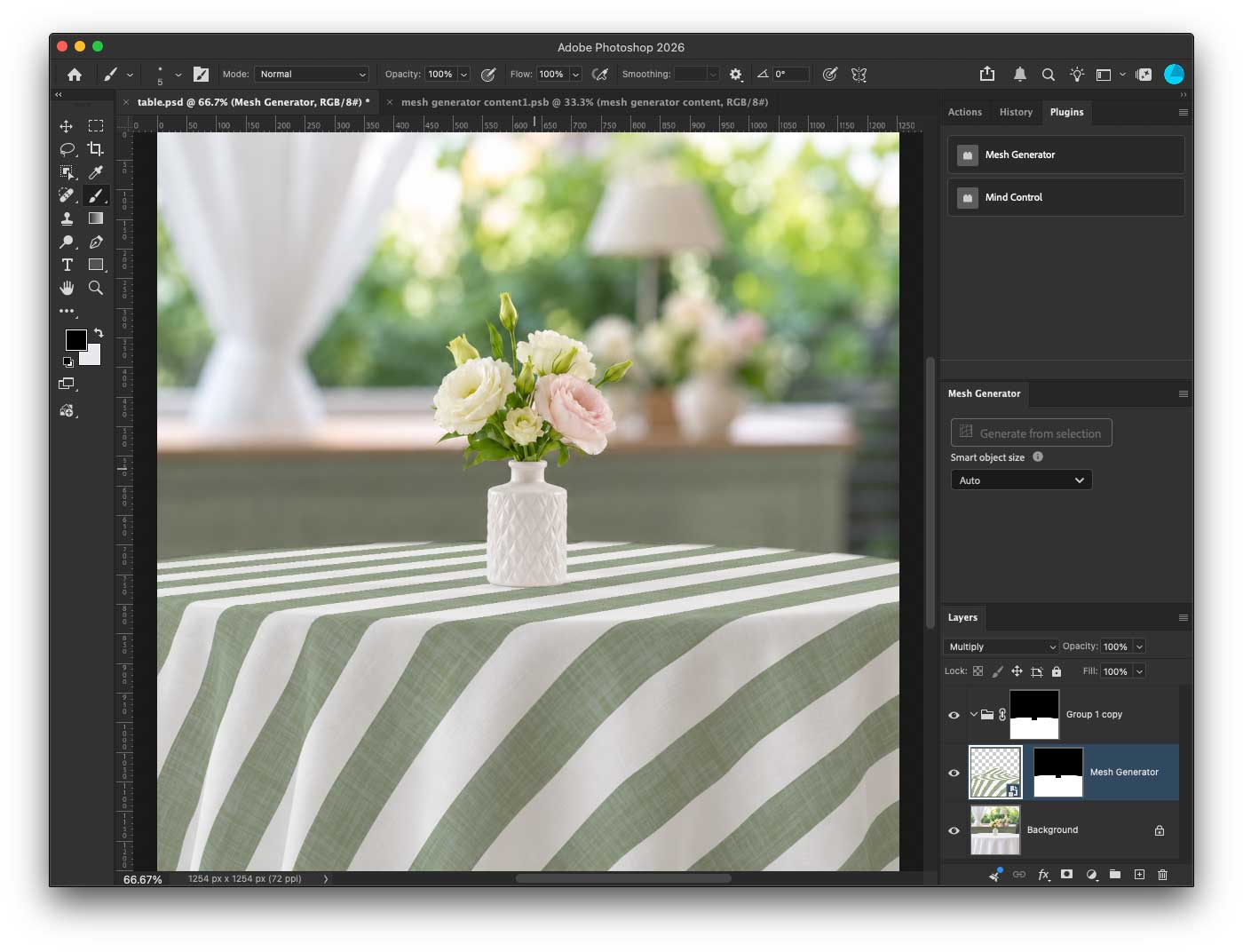
The generated layer uses Multiply blending mode, which can sometimes help preserve the original photograph’s shadows and highlights. Depending on the image, you may want to make additional adjustments for a more realistic result.
And the best part? You can reuse the generated Smart Object with as many different designs as you like without spending another generation.
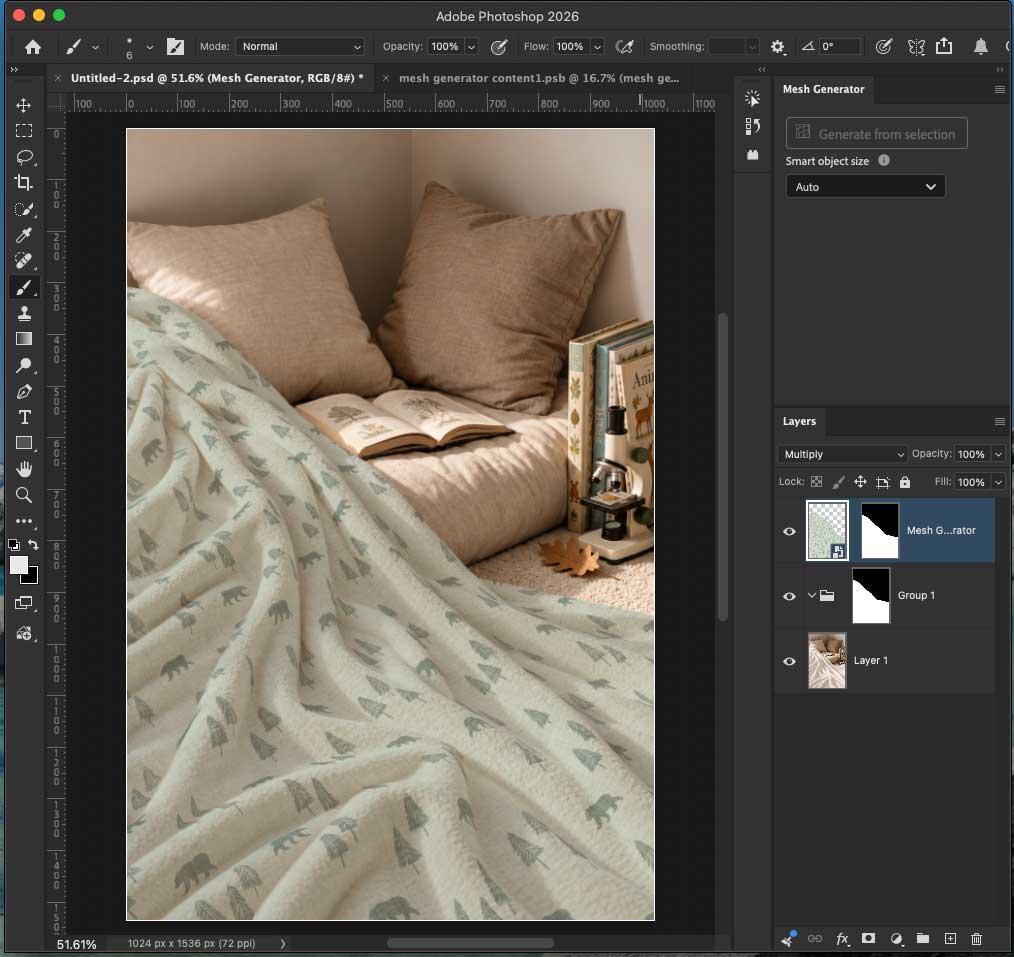
One Mesh. As Many Designs as You Like.
Once Mesh Generator has created your Smart Object, it’s yours to edit.
Replace the artwork. Change its scale. Adjust the mesh. Try a completely different pattern.
The mesh and the contents of the embedded Smart Object remain editable in Photoshop. You don’t need to run the plugin again every time you change your design.
A Few More Examples
Tablecloth: From Flat Photo to Fabric Mockup
Skirt: Making a Pattern Follow the Folds
Whether you’re preparing mockups for a customer, showcasing a textile collection, or making product images for your online shop, spend less time building meshes and more time designing.
Frequently Asked Questions
Why do I need to deal with Smart Objects when AI can already do this for me?
Excellent question. That’s exactly what I thought.
In the era of AI-generated images, everything seems easy to achieve without sophisticated tools. So, naturally, I asked an AI chatbot to apply my seamless pattern to a blanket mockup.
Let’s look at Exhibit A.
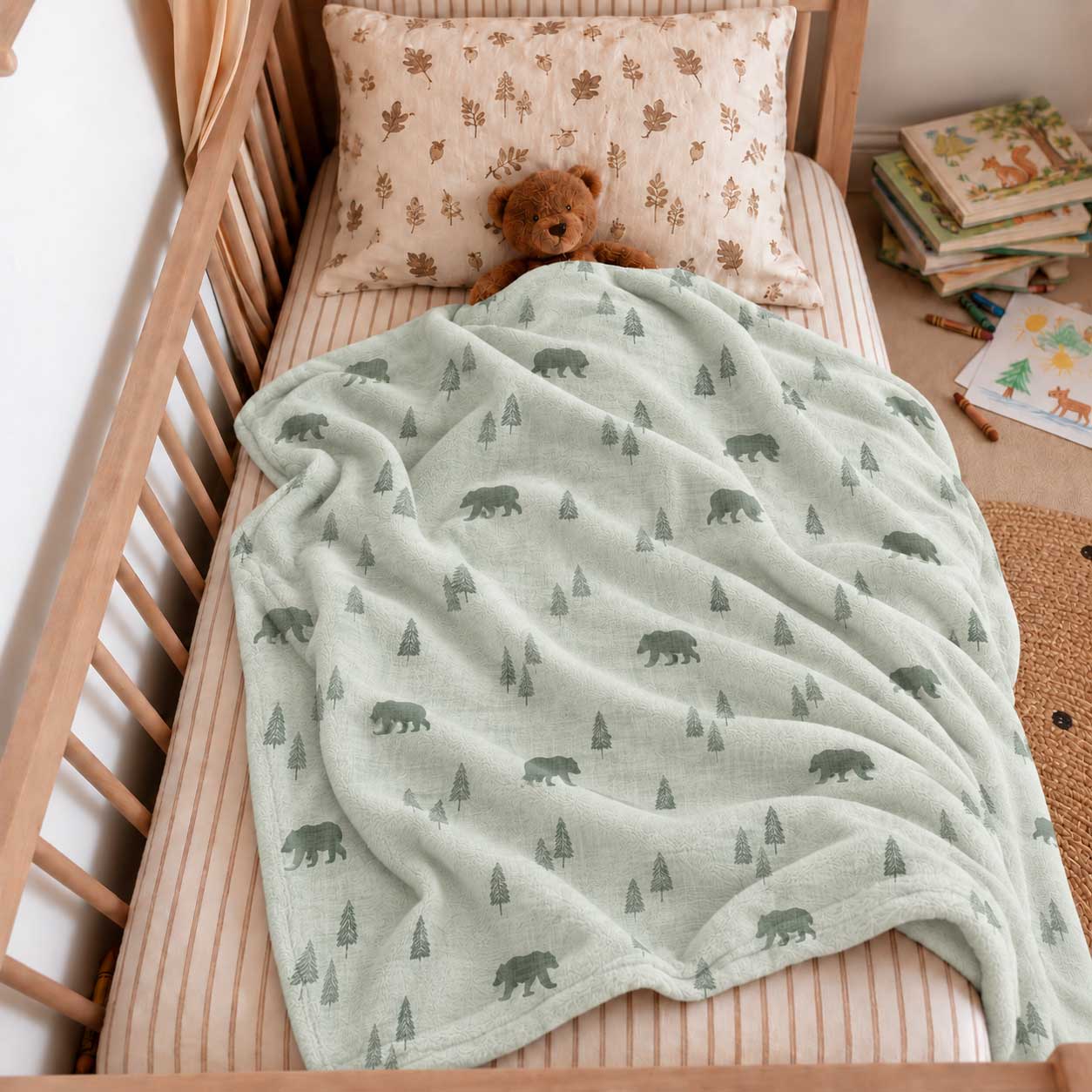 I spy with my little eye: Jimothy, Cerberus, a three-legged bear, a five-legged bear, a boar.
Hey, that looks pretty cool! Except I don’t recognize half the animals. And is that Jimothy over there?
Since the blanket was positioned sideways, I asked AI to rotate the pattern.
My AI somehow didn’t like the idea of the sideways seamless patterns.
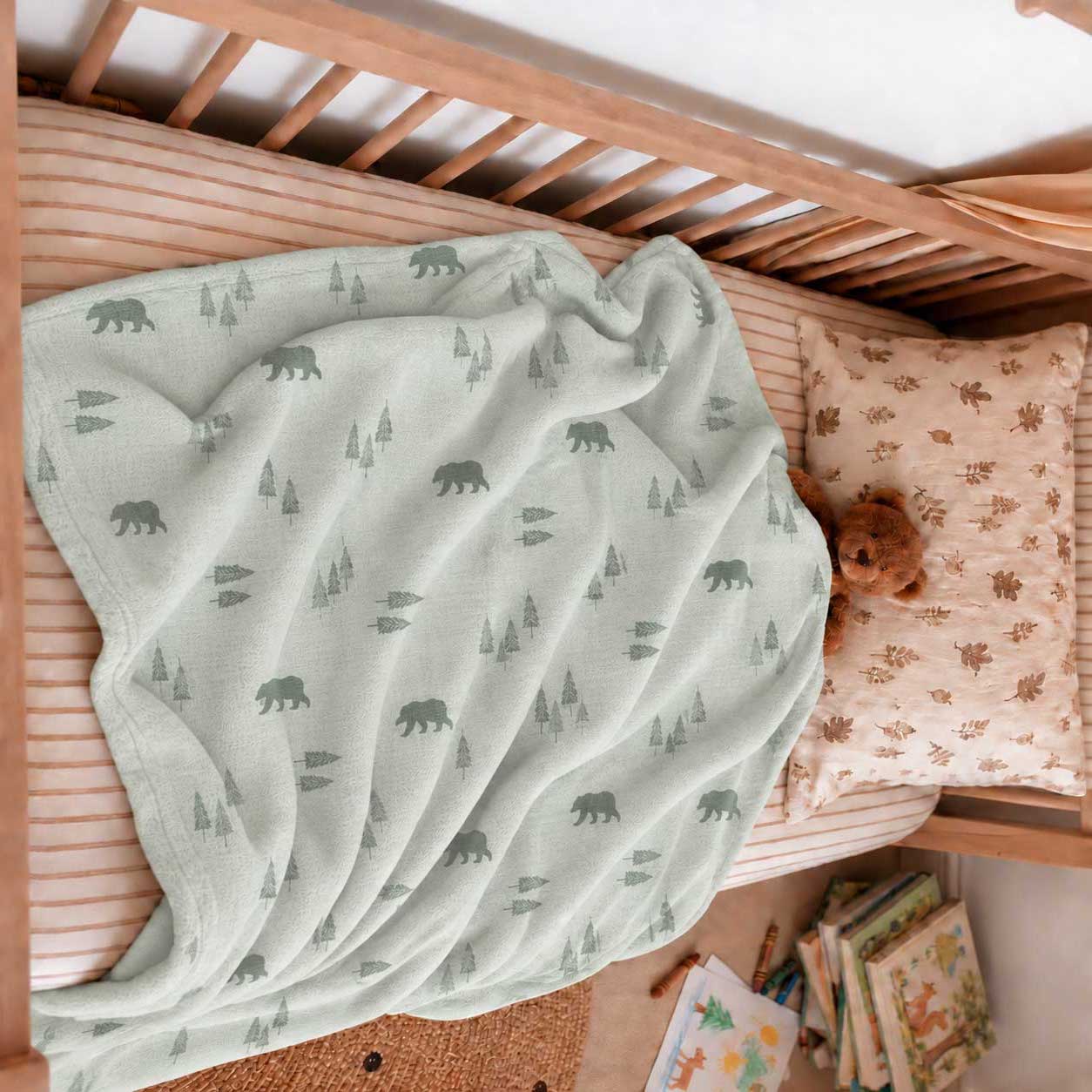 I spy with my little eye: 21 fallen trees, a bear defying gravity, and a bare tree trunk. Image is rotated for your convenience
Well, it wasn’t the end of the world. A couple more nudges might have fixed it.
But I actually had work to do, and I also needed mockups for three more seamless patterns, and our little game of I Spy with AI was getting slow and boring.
So I decided I could get better results by creating a realistic Smart Object mesh myself.
I can assure you, that was not fun either.
After a few failed attempts, I realized I needed a better solution involving computer vision, spatial geometry, and some solid math.
And that’s how Mesh Generator came to be.
AI image generation is great for many things. But when you need to preserve your exact artwork, a reusable, editable Photoshop mesh gives you something different: control.
Your pattern isn’t being reinvented. You’re placing the original artwork onto a geometrically transformed surface.
No surprise animals. Unless you put them there yourself.
Is Mesh Generator AI-generated?
Mesh Generator does not use generative AI to create or redraw your artwork.
No! It uses computer vision and mathematical fitting algorithms to analyze surface geometry and calculate a mesh transformation. It does not use large language models or third-party generative AI services to process your images.
The result is a Photoshop Smart Object that you can edit using familiar Photoshop tools.
Does Mesh Generator automatically create photorealistic mockups?
Mesh Generator handles geometry, not complete photographic rendering.
It calculates a transformation to help your design follow the surface’s curves, folds, and perspective.
The generated Smart Object layer uses Multiply blending mode, which can sometimes preserve useful shadows and highlights from the original photograph. Depending on the image, you may need additional blending, lighting, color, or texture adjustments.
Think of Mesh Generator as the tool that handles the difficult geometry while leaving the artistic decisions in your hands.
Can I change the pattern after generating the mesh?
Absolutely. And you should!
Once the Smart Object is created, you can replace its contents as many times as you like. Use seamless patterns, artwork, photographs, textures, or other designs. You can also modify the mesh itself.
Editing an existing Smart Object does not use another generation.
Does it work with curved surfaces and fabric folds?
Yes! In fact, that’s exactly what Mesh Generator is designed for.
It uses computer vision to estimate surface geometry, including curves and folds.
Some images are more challenging than others. Partially hidden, heavily obstructed or AI-generated objects can confuse depth estimation and affect the generated mesh. Results depend on the photograph and the visibility of the target surface, but you can refine the generated mesh manually in Photoshop when needed.
Why does the plugin ask for my consent before generating a mesh?
Because you should know what happens to your images.
Mesh Generator performs computer vision processing on our remote servers. To generate a mesh, the plugin sends a downsampled, flattened version of the visible image and its selection mask.
Image processing, including intermediate processing, takes place entirely in server memory. The image data is discarded when the job is complete. We do not retain images, do not use them for training, and do not share them with third-party processing providers.
Please see our Privacy Policy for more information, including how account and payment information is handled separately.
Can I try Mesh Generator for free?
Yes!
Each Photoshop user receives 50 free mesh generations, with no credit card required. The plugin associates the free allowance with your Photoshop user ID.
You can continue editing and reusing the Smart Objects you generate, even after you’ve used all 50 free runs.
If you need more generations, you can buy a run pack on our Pricing page.
What happens if mesh generation fails?
Technology occasionally has a bad day. We get it.
Failed generation attempts do not count toward your quota. If generation fails, you won’t lose one of your available runs.
If the plugin continues to have problems, please contact support.
I’ve tried running the plugin several times, and now it won’t generate another mesh. What happened?
You may have used up your 50 free generations, or the runs you’ve bought.
You can buy more runs on the Pricing page. If you believe you still have generations available, please contact support.
How do I get more generations?
Buy a run pack on the Pricing page. It’s prepaid: you pay once, and the runs are added to your balance right away.
Mesh Generator uses server-side processing, which comes with ongoing computing and operating costs. A run pack covers them without anything recurring.
Your runs never expire while your account is open, so there’s nothing to keep track of and nothing to cancel. Any unused free generations stay available too.
No recurring charges. No awkward breakup conversations.
See our Terms of Service for the complete details.
Do I need to keep paying to use my existing Smart Objects?
No.
Once a mesh is generated, it’s part of your Photoshop document. You can keep editing, modifying, and reusing it whether or not you have runs left.
Runs are only needed for new mesh generations.
Can I use the generated Smart Objects commercially?
Absolutely. They’re yours!
Mesh Generator creates a transformed Smart Object inside your Photoshop document. We don’t claim ownership or intellectual property rights over the generated mesh or Smart Object.
You’re free to use, modify, and distribute the results, including commercially. Use them in client work, product listings, finished mockups, or editable PSD templates. There are no additional Mesh Generator royalties or licensing fees on the generated output.
Of course, you still need appropriate rights to any photographs, patterns, fonts, or other materials that you incorporate.
What version of Photoshop do I need?
Mesh Generator is built using Adobe’s UXP plugin technology.
We verify it with the current active Adobe Photoshop 2026 (internal version 27.7.0), but it should happily work in Adobe Photoshop 2023 and above (though we are not able to test it ourselves)
Less Warping. More Creating.
Whether you’re testing five colorways on the same blanket, presenting your latest textile collection, or preparing new product mockups for your online store, Mesh Generator helps you skip the most tedious part: building the geometry from scratch.
Generate the mesh once. Make it your own. Use it again and again.
Your Meshes. Your Files. Your Rights.
No royalties. No ownership claims over your generated Smart Objects. No payment required to keep using files you’ve already created.
Start with 50 free generations.